Control your Macfrom
Your live desktop in hand — point, swipe, and type at full speed. Run Terminal, move files, and paste across devices from anywhere.
Move with one finger, scroll with two — both devices on the right are live.
A trackpad that keeps up with your finger
Move slowly for fine control. Flick to cross the screen. Try dragging the trackpad.
Mac gestures work on your iPhone
Swipe up with three fingers for Mission Control, down to show the desktop, sideways to switch desktops. Pinch and scroll are told apart automatically.
Hit small buttons on a small screen
Switch to Direct Touch and the Mac clicks right where your finger lands.
Type on iPhone. Land right at the Mac cursor.
Type with the iPhone keyboard, pick a word, and it appears at the cursor on your Mac.
Portrait for one hand. Landscape for the full desktop.
Hold it upright: Codex and live video on top, a trackpad below, easy to command with one hand.
Run your Mac’s Terminal on iPhone
It’s a real login shell on your Mac, so Claude Code and Codex run as they do at your desk. Lock the phone or lose signal and the session keeps running.
Files made on your Mac, straight to your iPhone
Your Mac picks one shared folder. Your iPhone can browse it, bring files back, and upload from the Files app.
Copy on one device, paste on the other
Tap Get from Mac, or send a line of text to your Mac. It only happens when you ask.
Step out for a coffee, or settle in all day
Leave a task running on your desk Mac, step downstairs for an espresso, and glance at your iPhone to approve a prompt in seconds.
One iPhone for every Mac you own
Paired Macs live on the Home tab. Swipe to one, tap Connect, and you’re on its desktop.
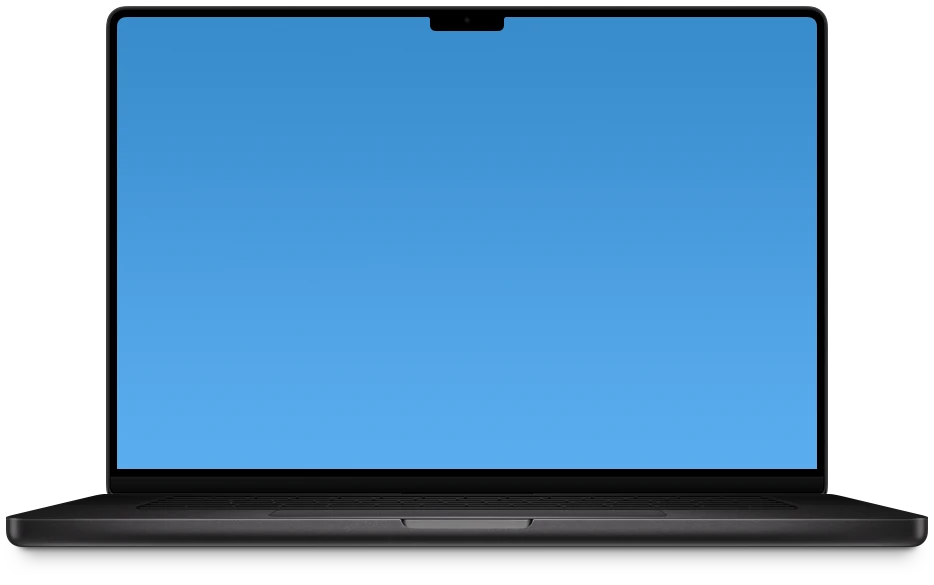
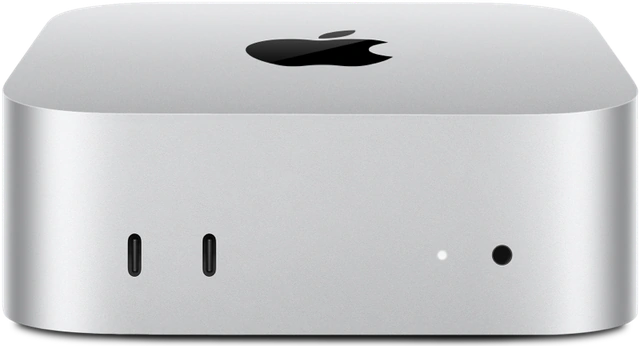
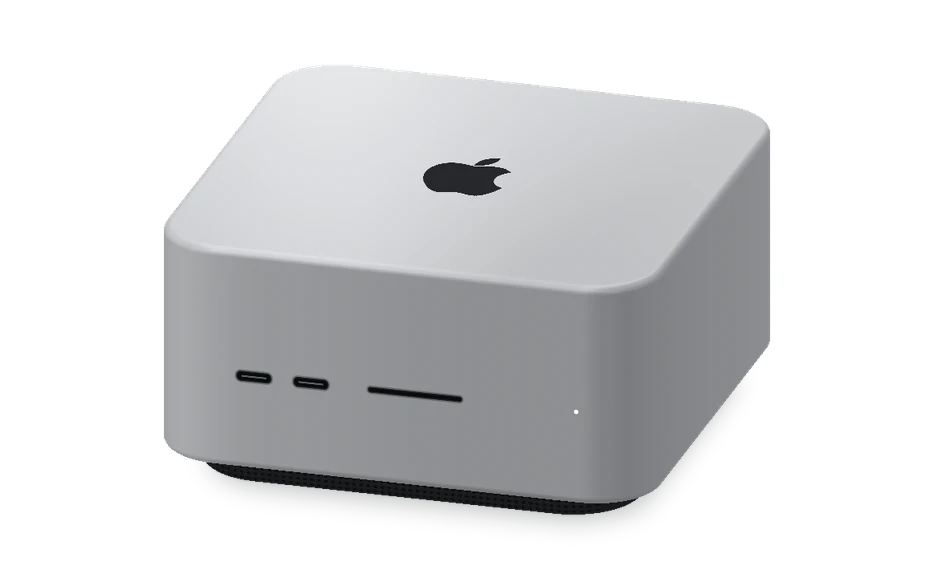
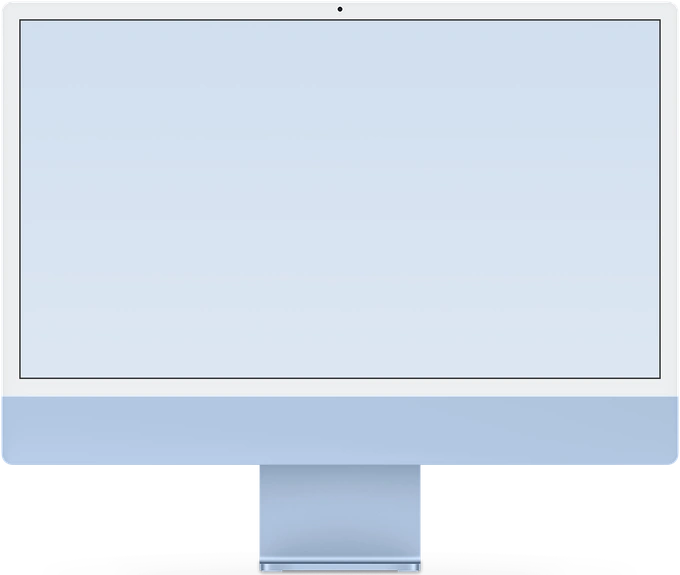
Pair with a scan. Your Mac stays in control.
Scan the nebula pairing code on your Mac, check that both show the same six digits, then choose Allow on the Mac.
Now on iPad, with room for the whole Mac
The 16:10 Mac desktop fits edge to edge in landscape, with View / Control up top and a Liquid Glass corner rail you can tuck away in one tap.
How do I pair the first time? Which Mac permissions are needed?
Put your iPhone or iPad and Mac on the same network. Open Monis on the Mac to show the nebula pairing code, scan it with your iPhone or iPad, check the six digits on both, and choose Allow on the Mac. Viewing needs the macOS Screen Recording permission; trackpad and keyboard control need Accessibility. Pairing is kept in the system Keychain, so you won’t scan again.
How sharp is the picture? Does it slow my Mac down?
The picture is encoded in hardware with HEVC or H.264 and drawn with Metal on iPhone and iPad. On the Mac you can choose a quality, such as High Quality or Smooth 60fps. Because the hardware does the encoding, the Mac stays light during a session—and when you switch apps to reply to a message, the live desktop can keep floating in Picture in Picture.
Which gestures are supported?
Move and tap with one finger, plus double and triple taps. Tap with two fingers to right-click, slide two fingers to scroll, pinch to zoom. Hold for about half a second until the device buzzes, then drag. Three-finger swipes up, down and sideways open Mission Control, show the desktop and switch desktops. Pinch and scroll are told apart automatically. System actions in the More menu send the Mac’s default shortcuts.
Can I connect to my Mac when I’m out, away from home or the hotel?
On the same Wi‑Fi or Personal Hotspot, devices discover each other automatically. When you’re away, you can already connect across networks today by saving your Mac’s Tailscale, VPN, or static address (host and port) under Direct Addresses. Zero-setup native cross-network access is also in development, and we’ll update this page when it’s ready.
How many Macs can one iPhone or iPad use?
Every paired Mac appears on the Home tab. Switch to one and tap Connect. The Terminal and Files tabs are grouped by Mac too, with up to 4 terminal sessions per Mac. You can also connect from another Mac, where the remote desktop opens in its own window.
Does the clipboard sync automatically?
No. Text moves only when you tap Get from Mac or Send to Mac. Plain text only, up to 8 KiB at a time. Each Mac keeps its own recent history for as long as you choose. Typing with your iPhone or iPad keyboard never goes through the clipboard.
Do terminal commands stop when my device locks?
No. Terminal is a real login shell running on your Mac. Locking your iPhone or iPad, switching apps or disconnecting doesn’t stop it, and the output you missed is filled in when you return.
Can my iPhone or iPad see every file on my Mac?
No. Files only move in and out of the one shared folder you choose on the Mac, Downloads by default. One file at a time, up to 512 MiB, verified after transfer. Files with the same name are never overwritten.
Is iPad supported?
Yes. iPad shares the same TestFlight preview build as iPhone: the 16:10 Mac desktop fills the canvas in landscape with collapsible Liquid Glass corner controls, native Split View and Stage Manager window resizing, a floating Terminal that expands to fullscreen without reconnecting, and Magic Trackpad / Magic Keyboard support while we keep refining the native iPad UI.
Try Monis
The Mac app and the iPhone & iPad preview are sent by email invitation. Tell us what you think once you’ve tried it.
macOS 14.4 or later · Apple silicon · iOS / iPadOS 26 or later